
CamScanner- scanner, PDF maker
INTSIG PTEProductivity
4.6153.01K Reviews
- Version
- 7.28.5.2611020000
- Installs
- 500.00M
- Age Rating
- Everyone
Screenshots
Our Review of CamScanner- scanner, PDF maker
 Analysis by Appyee
I often reach for a phone scanner when paperwork turns up at the least convenient moment: a form that needs returning, a receipt worth keeping, or a page someone in the household needs to see. CamScanner is built for that practical job, and its combination of camera scanning, PDF creation, e-signatures, and sharing makes it more useful than a camera roll full of document photos. I’d consider it most helpful for people who regularly handle paper away from a desk, though it takes a little thought to keep shared use tidy.
First Impressions
Right off the bat, the interface of CamScanner is clean and intuitive. I didn’t have to spend ages figuring out how to use it, which is always a plus in my book. The home screen is straightforward with options to scan, view documents, and access settings. Everything is neatly organized, making it super easy to navigate.
A scanner that fits household errands
The everyday advantage is not just replacing a flatbed scanner; it is having a way to make a usable document while you are already dealing with the paper. Imagine a school permission form arriving in a bag while one person is cooking and another is sorting mail. I can capture the pages, check the crop, save the result as a PDF, and send it to the person who needs to complete or keep it. That is a smoother handoff than taking several photos and asking someone else to work out their order.
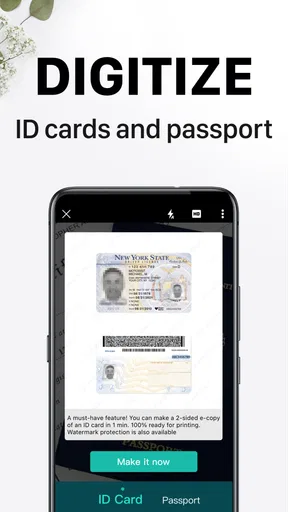
For a shared household, though, I would treat the phone and the documents as belonging to their actual users, rather than assuming the app provides family profiles or household controls. Before scanning, decide whose account or device should hold the file and who is meant to receive it. That small habit matters for bills, identity paperwork, medical forms, and anything else that should not casually end up in the wrong person’s document collection.
Scanning Features
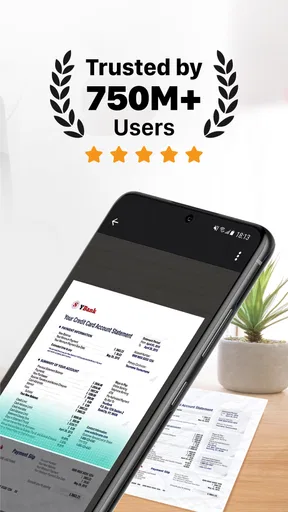
Now, onto the bread and butter of the app—scanning. The app uses your phone’s camera to capture documents, and it does a pretty stellar job at it. I was impressed by how it automatically detects the edges of the paper, cropping the image perfectly most of the time. You can manually adjust the edges if needed, but the auto-detection is usually spot-on.
Once scanned, you can choose from a variety of filters to enhance the document’s readability. Whether it’s a black-and-white filter for text-heavy documents or a color filter for more vibrant images, there’s something for every need. Plus, the app supports batch scanning, which is a lifesaver when you have a stack of documents to digitize.
My practical tip is to inspect each page before you finish a batch, especially if the paper is curled, glossy, or placed on a busy background. Edge detection is a convenience, not a guarantee; a small crop error can remove a signature or a line of fine print. For multipage forms, keep the pages in order as you capture them, then review the resulting document from beginning to end before sharing. It is much easier to correct a missed page while the originals are still in front of you.
PDF and Document Management
After scanning, the app automatically converts your documents into PDF format, which is super convenient. You can easily organize your documents into folders within the app, making it simple to keep track of everything. The search function is quite robust, allowing you to find documents by name or keywords, which is especially handy when you have hundreds of files.
Sharing documents is a breeze too. Whether you need to email a PDF, upload it to the cloud, or share a link, CamScanner has got you covered. The app integrates seamlessly with services like Google Drive, Dropbox, and OneDrive, so your documents are always accessible.
For household coordination, I find it useful to name files for the task rather than leave them as generic scans: a short label such as the person, purpose, and month can make a later search far less frustrating. Keep related pages together when they belong to one application, but separate unrelated receipts or forms so a recipient gets only what they need. Before sending, open the PDF and check that every page is upright, readable, and included. A quick review is especially worthwhile when the file is going to a school, landlord, clinic, or employer.
Compared with taking ordinary pictures, a scanner app is better suited to creating a document that looks like a page and can be bundled into a PDF. Compared with using a desktop scanner, the phone workflow is much more convenient when you are away from home or only have a few pages. If you already scan occasionally with a built-in phone tool and need nothing beyond a basic PDF, that simpler option may be enough. I would choose CamScanner when I want a more dedicated place to capture, organize, and prepare paperwork for sharing.
Security and Privacy
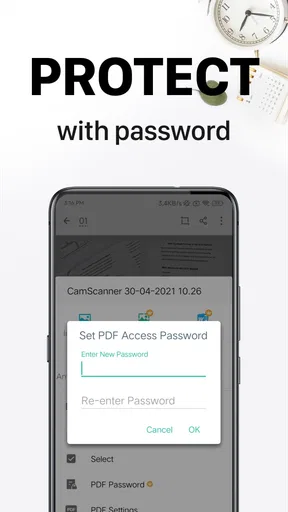
In today’s digital age, privacy is a big concern, and CamScanner addresses this with features like password protection for documents. You can lock sensitive files, ensuring that only authorized users can access them. Additionally, with cloud syncing options, you can back up your files securely, so there’s no fear of losing important documents.
I would still be selective about what I scan and where I send it. A password on a document can add a useful barrier, but it is not a reason to treat every file as harmless or share it broadly. For sensitive paperwork, confirm the recipient and destination first, and avoid leaving a private scan open on a device that other people use. Cloud syncing can help with continuity, but it also means you should be deliberate about which account is connected and who can access that account.
Signatures, text, and useful extras
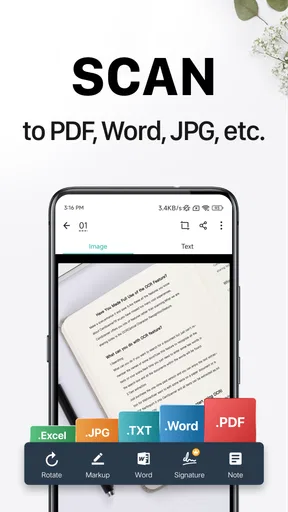
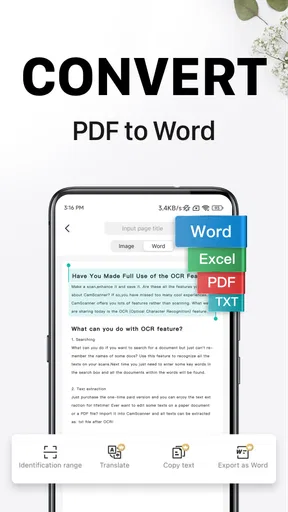
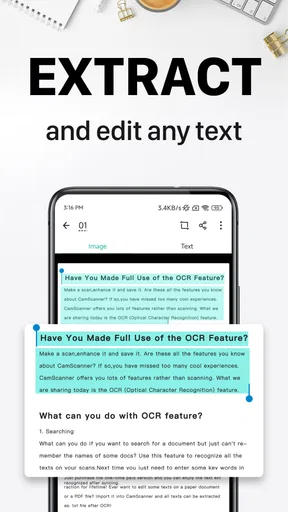
Beyond basic scanning, the app offers some nifty extras. The OCR (Optical Character Recognition) feature is particularly noteworthy. It allows you to extract text from images, which can be a massive time saver when you need to digitize notes or printed text. The accuracy is impressive, capturing even small fonts with ease.
For me, text recognition is most useful as a starting point for finding or reusing printed information, not as a substitute for proofreading. Columns, small print, handwriting, and unusual layouts can make extracted text less dependable than the scanned page itself. I would keep the PDF as the record and check important names, dates, and amounts before copying recognized text into another document.
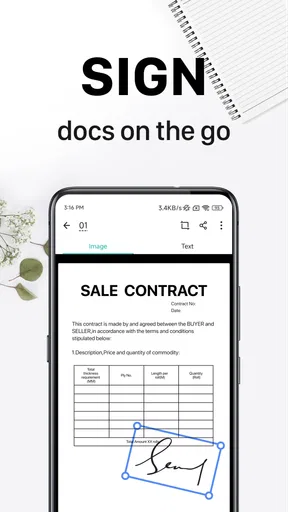
Another cool feature is the ability to add annotations and signatures to your documents. Whether you’re filling out forms or adding comments, the app provides a seamless experience. This is especially useful for professionals who need to review or sign documents on the go.
That signature option can make a short, straightforward form easier to finish without printing it, but it does not remove the need to read the document or confirm that an electronic signature is accepted by the recipient. If the form has fields that require careful formatting or a formal signing process, a computer-based PDF editor may offer a better working view. I see the phone workflow as convenient for simple tasks, not a universal replacement for every document process.
Who it suits, and where I’d draw the line
CamScanner is a good fit for students keeping class handouts together, freelancers sending signed paperwork, and households that regularly need to pass forms or receipts between people. It is also handy for anyone who travels with documents and wants a PDF ready to email rather than a set of loose camera images. The app is free to start, while in-app purchases range from $0.49 to $399.99 per item, so I would check the purchase details before choosing any paid option rather than assuming every tool is included at no cost.
It is less compelling if you rarely scan anything, prefer to keep every file exclusively on paper, or need a shared filing system with clearly managed access for several people. I would not install it on a shared device and assume that one person’s account, saved scans, or settings automatically suit everyone else. Agree on a simple division: who scans, where the finished file goes, and whether the original should be kept. That is ordinary household coordination, not a feature of the app, but it can prevent confusion.
Age, trust, and practical setup
The app has an Everyone age rating, which makes it broadly suitable from a store-age perspective, but I would still guide younger users around private documents and sharing. A child may be perfectly capable of scanning a worksheet while not being the right person to decide where a medical form or a family bill should be sent. For shared use, I would keep account access with the responsible adult and explain which documents are appropriate to scan and share.
CamScanner is a productivity app from INTSIG PTE, with a 4.7 average from around 5 million ratings and over 500 million installs. It has been available since October 30, 2010, and its current version is 7.11.0.2601210000, with Android 5.0 as the minimum operating-system requirement. Those figures suggest a well-established tool, but they do not tell me whether its workflow fits a particular household; the best test is whether the people who need it can capture, find, and send documents without mixing up accounts or files.
Final Thoughts
Overall, CamScanner is a must-have app for anyone looking to turn their smartphone into a powerful document scanning tool. With its easy-to-use interface, robust scanning capabilities, and a suite of additional features, it truly stands out in the crowded field of scanning apps. Whether you’re going paperless or just need a reliable way to manage documents, this app is definitely worth checking out.
If you’re ready to take your document management to the next level, you can download CamScanner from the App Store or Google Play. Trust me, you won’t regret it!
My household verdict is a little more measured: I recommend it when paperwork is frequent enough that batch capture, PDFs, text recognition, and on-the-go signatures save real effort. For occasional one-page scans, a built-in phone scanner may be simpler; for collaborative filing that depends on carefully separated family access, choose a system designed around that need. If you do use CamScanner together, a clear naming habit and a quick recipient check make its convenience much more dependable.
Privacy and Permissions
See what permissions an app requests and how it handles your data.
- Device & app history
- retrieve running apps
- Location
- approximate location (network-based), precise location (GPS and network-based), access extra location provider commands
- Photos/Media/Files
- read the contents of your USB storage, modify or delete the contents of your USB storage
- Storage
- read the contents of your USB storage, modify or delete the contents of your USB storage
- Camera
- take pictures and videos
- Wi-Fi connection information
- view Wi-Fi connections
- Other
- view network connections, pair with Bluetooth devices, access Bluetooth settings, allow Wi-Fi Multicast reception, full network access, control vibration, prevent device from sleeping, install shortcuts
Verdict
Strengths of CamScanner- scanner, PDF maker
- User-friendly interface enhances productivity.
- High-quality scans in various formats available.
- OCR feature extracts text accurately from images.
- Seamlessly integrates with cloud storage services.
- Batch scanning saves time for handling documents.
Limitations of CamScanner- scanner, PDF maker
- Free version includes watermarks on documents.
- Ads may disrupt the scanning experience.
- Limited editing features in the free version.
- Premium features require a subscription.
- Occasional sync issues with cloud services.
Other Releases by INTSIG PTE
View All
Quiz AI: AI Homework Helper
Education4.6
Similar Picks in This Category
View All
Google Calendar
Google LLC4.6

Google Drive
Google LLC4.3

Google Assistant
Google LLC3.9

Microsoft OneDrive
Microsoft Corporation4.6

Samsung Calendar
Samsung Electronics Co., Ltd.4.1

Microsoft OneNote: Save Notes
Microsoft Corporation4.6
You May Also Like
View All
Frequently Asked Questions
How does CamScanner ensure the security of my scanned documents?
CamScanner employs advanced encryption technology to safeguard your documents. All files are stored securely in the cloud, and access is restricted to authorized users only. The app also allows for password protection of sensitive PDFs, ensuring that your personal and professional documents remain confidential.
What are the key features of CamScanner that make it stand out?
CamScanner offers a range of features including high-quality document scanning, OCR (Optical Character Recognition) for text extraction, and the ability to convert images into PDF format. It also provides editing tools such as cropping, annotations, and filters to enhance document clarity. The app's seamless integration with cloud services ensures easy access and sharing.
Is CamScanner free to use, and what are the differences between the free and paid versions?
CamScanner offers a free version with basic functionalities such as scanning and sharing documents. However, the premium version unlocks advanced features like unlimited scanning, ad-free experience, additional cloud storage, and enhanced OCR capabilities. Users can choose a subscription plan that suits their needs for more robust document management.
How user-friendly is the CamScanner app for beginners?
CamScanner is designed with a user-friendly interface that is intuitive even for beginners. The app provides step-by-step guidance for scanning documents and offers tutorials for using advanced features. Its simple navigation and clear instructions make it easy for users of all skill levels to efficiently manage their documents.
Can CamScanner integrate with other apps and services?
Yes, CamScanner can integrate with various cloud services such as Google Drive, Dropbox, and OneDrive, allowing for easy document backup and sharing. The app also supports email and fax functionalities directly from the platform. This integration ensures a seamless workflow across different tools and devices.
